![Whipcord Edge Horizontal logo 2021-2.png]](https://kb.whipcord.com/hs-fs/hubfs/Whipcord%20Edge%20Horizontal%20logo%202021-2.png?height=40&name=Whipcord%20Edge%20Horizontal%20logo%202021-2.png)
Step 1:
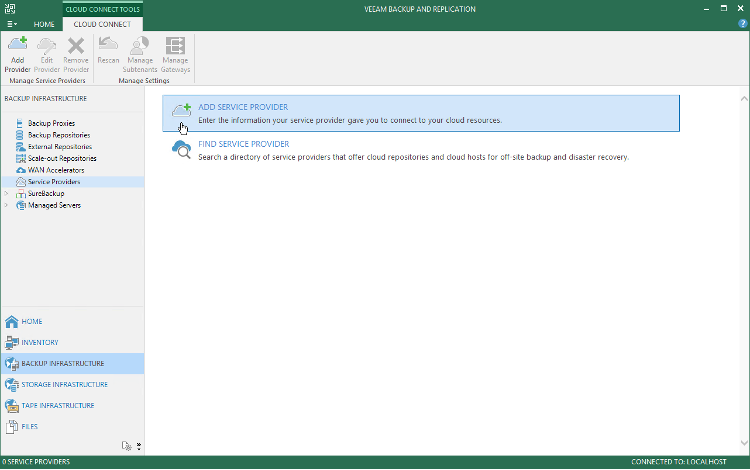
Select Backup Infrastructure -> Service Providers and select “Add Service Provider”
Step 2:
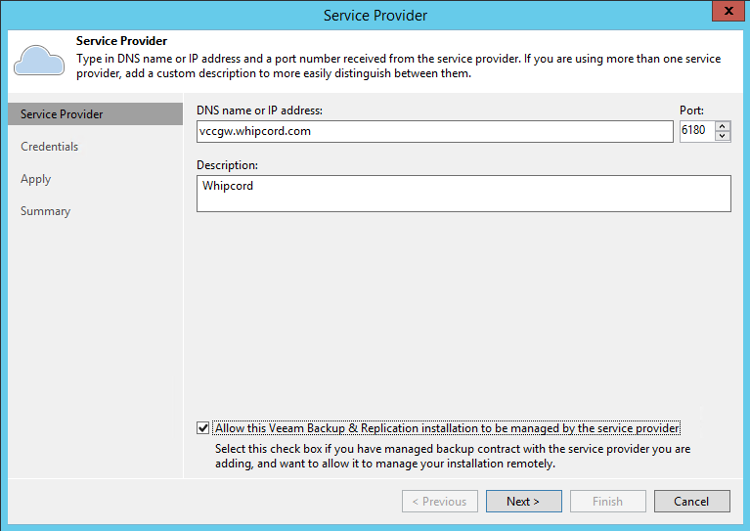
Use the value: vccgw.whipcord.com as the DNS name. Leave port 6180 as default. Select “Allow this Veeam Backup & Replication installation to be managed by the service provider”. This option allows more statistics and information to be brought into Whipcords Veeam Service Provider Console.
Step 3:
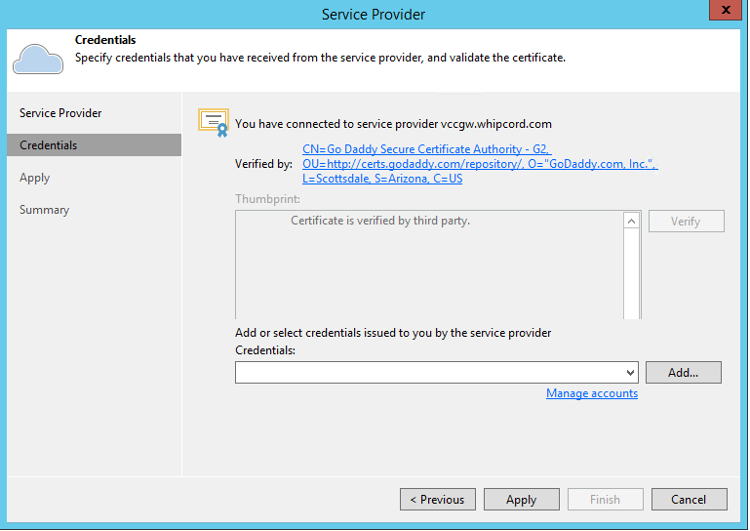
Wait for the certificate information to appear.
Step 4:
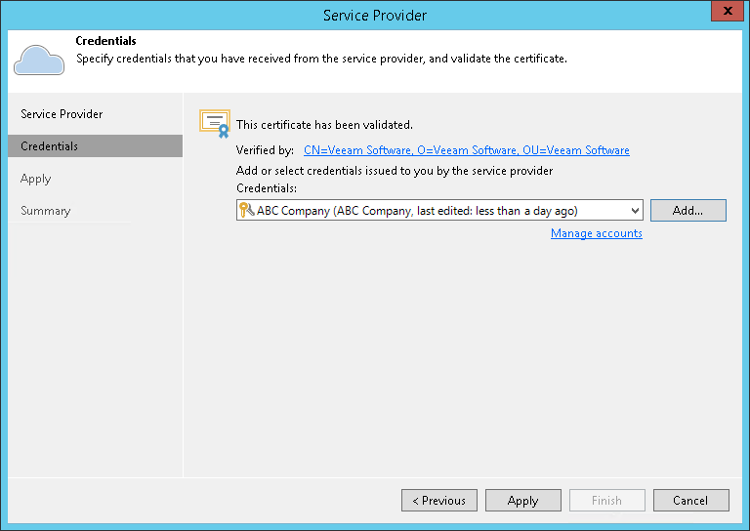
Click Add to provide credentials to your Veeam Cloud Connect account with Whipcord.
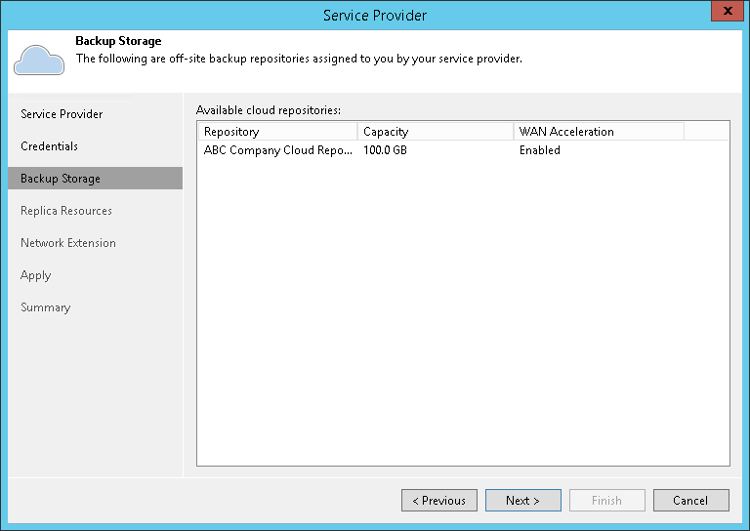
Step 5:
View the available cloud repositories (if applicable)
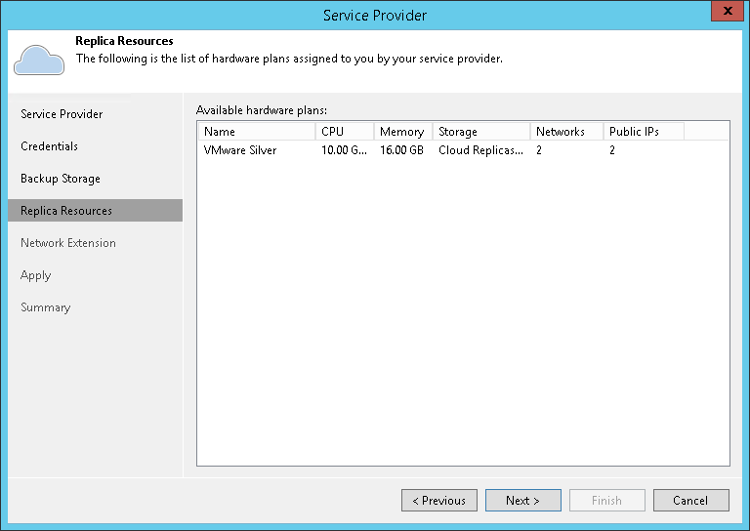
Step 6:
View the available hardware plan for replication (if applicable)
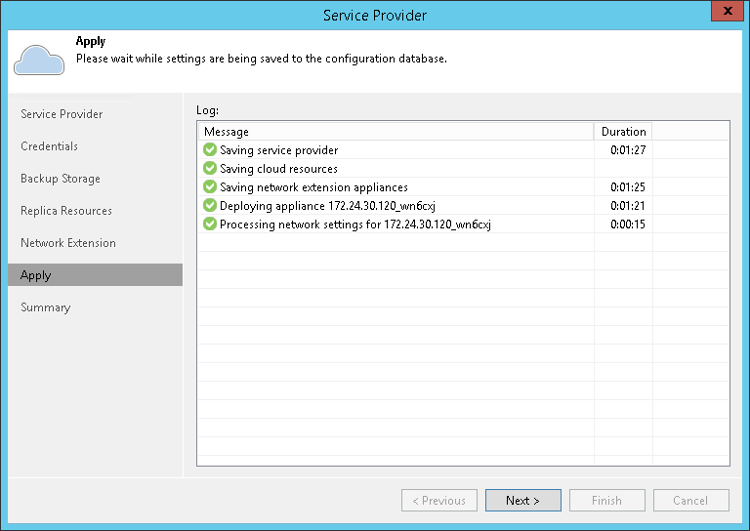
Step 7:
Review the results.
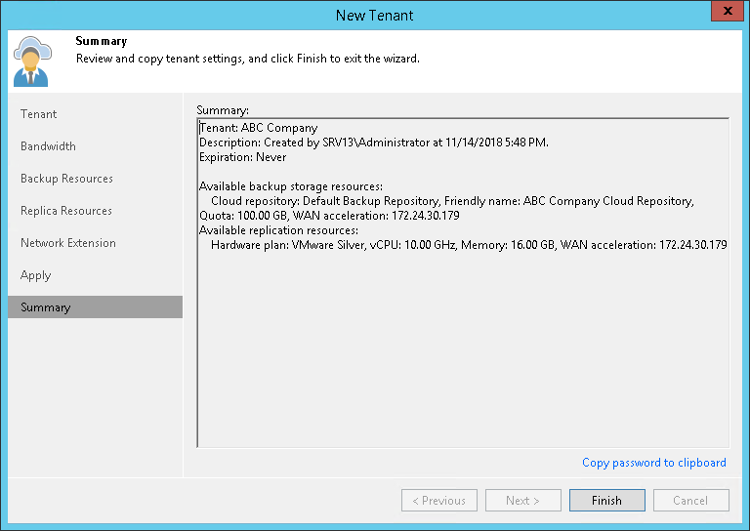
Step 8:
Review the summary and click Finish.
When using Whipcord as an offsite backup repository, you will see a new repository show up in your Backup Repositories section of Veeam Backup and Replication.
When using Whipcord as a replication target, you will see your hardware plan show up under a ‘Cloud Host’ destination.
Step 9:
Target your backup, backup copy or replication jobs to Whipcord.