
Best practices for backup jobs to Whipcord Edge
Insider Threat Protection
Setup at least one GFS restore point.

This allows for "Insider Threat Protection" to work appropriately. We highly encourage all our customers to set at *least* one GFS restore point due to this feature alone. However, it does come at the cost of storing another full backup with us. Its well worth the cost for the extra peace of mind it provides.
Here is a link explaining how it works: https://helpcenter.veeam.com/docs/backup/cloud/cloud_connect_bin_hiw.html?ver=110
Leave "Read the entire restore point from source backups..." disabled. Otherwise you will push more data than required.
Health Checks
Under Advanced -> Maintenance:
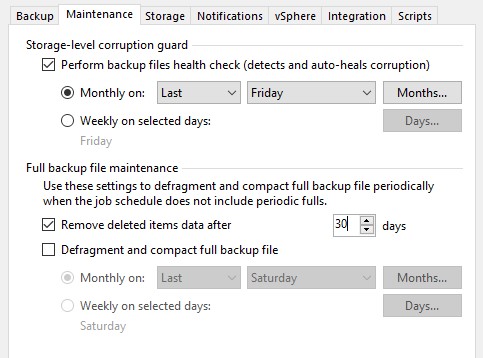
Enable Health Checks (Storage-level corruption guard). This will make the job run longer when the health check runs, but it ensures the health of your backups with us. Once a month is frequent enough.
Removing deleted items is encouraged, but only if it fits your business needs. If you remove a VM from the backup job, it will delete that VM from the backups after X days (30 in my example above). This ensures you are not backing up more than you need with us, however, it will remove old backups for that system. Set it to the value that works best for your business.
Defrag and compact full backup file is not compatible if you set a GFS restore point (as recommended above).
Data Reduction
Under Advanced -> Storage:
Data reduction:
The default setting of enabled with a compression level of Auto (recommended) is sufficient. You can force it to a single value of Optimal, High or Extreme, but it may cause excessive CPU usage on your VBR server. We recommend the Auto setting.
Encryption
We recommend you encrypt your backups with us for your added safety and protection. This ensures all backups residing in our facilities are both encrypted in transit (Veeam default), and encrypted at rest. That way none of your data can be read by anyone if they do not have that encryption key/password. This means even our administrators here at Whipcord Edge have no access to the contents of your backups, nor do we have any access to recovery your encryption key in the event it is lost. The only way to gain access to that backup content is with your encryption key - keep it safe!
If you do not have it enabled yet and you decide to enable it now, a new active full backup will need to be ran, temporarily increasing your storage use with us. Once the new backup chain is created the old one will be deleted based on your retention policy and your usage will return to normal.
Word of caution - make absolutely certain that password you set is correct and documented securely. If you ever need that backup recovered from us, or need us to restore that backup to our Cloud in the event of a disaster, that encryption password is required to perform any recovery of that data. If you lose that password, you lose that backup. Don't lose it!